Showing posts with label Social Networking. Show all posts

Government Will Open YouTube Before Dissolving Assemblies


Naveed Qamar, federal defence minister, has assured the National Assembly or lower house of parliament that government will open the access of YouTube in Pakistan before dissolution of assemblies, i.e. with-in less than a week and a half.
Mr. Qamar said that government is seriously considering to unblock the video sharing website in the country, which was banned on September 17th, 2012 after a anti-Islamic video shared on website had crippled large scale protests from Muslims in Pakistan and worldwide.
Mr. Naveed Qamar, who was responding to a question raised by Shazia Marri, a lawmaker of the ruling Pakistan People’s Party, said that a decision on whether to unblock YouTube “would be taken within a couple of days”.
Ms. Marri had maintained that blocking YouTube is not the ultimate solution. She said that YouTube was blocked last year and enough time has passed by now after which government should consider to unblock the website.
Shazia Marri insisted that Interior Minister and other concerned bodies should devise a plan to get YouTube unblocked in the country.
It merits mentioning here that a recently held talks between Pakistan Telecommunication Authority and Google for blockade of anti-Islamic content in Pakistan failed.
Pakistan Telecommunication Authority has reportedly tried several times to convince Google for the blockade of anti-Islamic content in Pakistan, however, it is strange that Google is not agreeing to block such videos on the demand of Pakistani government, while it has done so in several other countries.

YouTube to Remain Blocked in Pakistan as Google Denies to Remove Anti Islamic Content


breaking youtube blocked in pakistan YouTube to Remain Blocked in Pakistan as Google Denies to Remove Anti Islamic ContentYouTube is likely to remain blocked in Pakistan for more time as recent talks between Pakistan Telecommunication Authority and Google for blockade of anti-Islamic content in Pakistan have failed, told us sources familiar with the matter.

Google, the parent company of YouTube, is reportedly not agreeing to block the access of anti-Islamic content in Pakistan and hence the government of Pakistan is going to maintain the permanent ban on the video sharing website in Pakistan.
On Directions of Raja Pervez Ashraf, Prime Minister of Pakistan, YouTube, world’s largest video sharing website, was banned in Pakistan on September 17th, 2012 when large scale protests were observed worldwide against a movie mocking Prophet Mohammad (P.B.U.H) was uploaded on YouTube.
Pakistan and several other governments had asked Google to remove the video from the website but Google has been denying the requests. Instead it blocked the access of blasphemous videos in various countries, including Egypt, Libya, Malaysia, Indonesia, Singapore and India, however, it didn’t block the videos in Pakistan in response to which government had to block the entire website through local ISPs.
It merits mentioning here that YouTube has this ability to block the access of certain videos in certain countries. It also has the technology to block all copies of a video (which are uploaded by different users) and all its replicas, which is otherwise not possible through URL filtering at local ISPs level.
Pakistan Telecommunication Authority has reportedly tried several times to convince Google for the blockade of anti-Islamic content in Pakistan, however, it is strange that Google is not agreeing to block such videos on the demand of Pakistani government, while it has done so in several other countries.

How To Use Facebook Places

Facebook’s new Places feature lets you share your 

whereabouts with all your friends. Here’s how it works 

on a smartphone or PC. 
 Facebook's new Places feature lets you share your current location by "checking in" from your smartphone. Whether you never really got into earlier location-based social networking services like Gowalla or Foursquare or just want to know what it is (and how to turn it off), read on for everything you need to know about Facebook Places.

Keep in mind that Places isn't available everywhere just yet--early reports indicate that it's United States-only, for now, but with significant gaps at the moment--so you may just have to wait.

Checking In Via Smartphone or PC

  
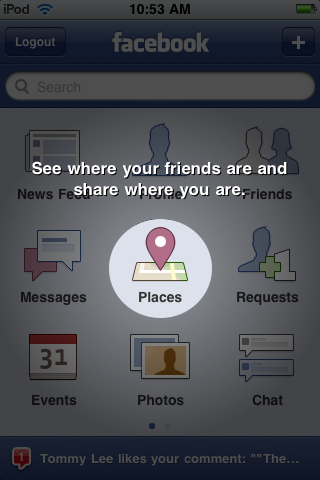
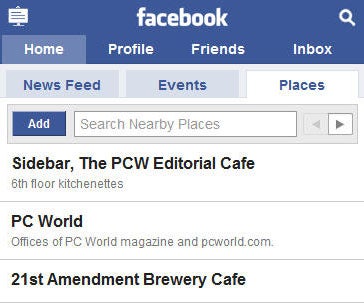
Before you can share your location with your Facebook friends, Facebook needs to know where you are. Just open touch.facebook.com in your Web browser (or use the Facebook for iPhone app on your iPhone, iPod Touch, or iPad), and you'll see a tab under "Inbox" called "Places." For the iOS app, it'll show a new icon in the middle of the home screen.

 
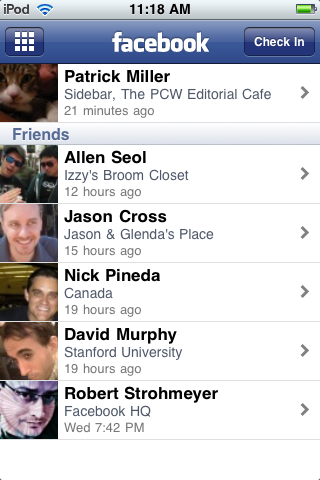
Tap Places, and you'll see your recent check-ins as well as your friends' check-ins. From here, you can find out more details about the places your friends are checking into (map location, description, directions, comments, and other check-ins), or you can check yourself into a nearby location by pressing the Check In button at the top-right corner of the page.
If you can't find the right place to check in from, you can browse more nearby locations by pressing the right arrow button under the Places tab until you find it (if you're using the iPhone app, just scroll all the way down and press Show More Nearby Locations).
  
The list of available locations comes from other people's check-ins and listings from Bing's mapping engine, so you might have to add your location yourself--just press Add, and it will take you to a page where you can fill out a name and description.
Once you tap Check In, you'll be presented with a list of nearby locations where other people have checked in. Tap the one you want to check into, and you can choose to comment on what you're doing there or add your Facebook friends to your check-in (Press the What are you doing? and Tag Friends With You buttons, respectively). Next, press the big Check In button, and it will show up on your News Feed.
While Places is mostly meant for smartphone users, it doesn't depend on a GPS device to find your location--you can check in from a laptop or iPod Touch, too. Just go to touch.facebook.com in your browser (you'll need Internet access, of course), and you can check in from your desk or café.

Checking In With Friends

Unless you're on Facebook just to show everyone what a loner you are, you'll eventually want to add the friends you're hanging out with to your Facebook Places check-in. All you have to do is choose the Tag Friends With You option while checking in.
 
Once you've added your friends and checked in, it'll show up on their News Feed as well. If they haven't used Facebook Places yet, it won't show up on their feed until they've approved the check-in; they'll see a little alert the next time they log in, asking them to allow or deny the check-in.
You can add friends only when you're checking in, so if you forget about adding someone and want to add them later, you're out of luck.
This can be rather tricky for users concerned about privacy--while researching this piece, I checked several of my PCWorldcolleagues into local bars at about 11am on a workday--so if you want to use Facebook Places without letting your friends check you in, you can disable it by turning off Friends Can Check Me Into Places in the privacy settings (click the link for detailed instructions). Once this is disabled, your friends can still try to add you at check-in time, but it won't display on the actual check-in.

Owning Your Facebook Place

  
While anyone can add a Facebook Place, business owners can turn the listing in Places into a proper Facebook Page, with Likes and a Wall and all that other fun stuff. (Don't forget to read "Three Ways Business Can Take Advantage of Facebook Places.")

Start by checking in from your Place (or adding it, if it doesn't show up in the list of nearby Places), and click the link on the bottom of the page that says Is this your business?
Facebook doesn't want people cybersquatting on someone else's business listing, so you'll have to check a box certifying you're an official representative of the business and click Proceed with Verification to continue.
  
Next, you'll have to provide your business's contact information, including your Federal Employee ID number (if applicable) and some kind of official documentation (Certificate of Formation, Articles of Certificate of Incorporation, a local business license, or a BBB accreditation).
Once you've submitted that information and received the okay from Facebook's User Operations team, you'll be in full control of your new Place. No word on what happens if you're caught impersonating an employee, and we don't recommend trying it.
How To Turn Off Facebook Places

Dabbled with Facebook Places and decided it isn't for you? There are a handful of settings you'll have to change to fully deactivate it. Start by going to Account, Privacy Settings, and click Customize settings under Sharing on Facebook.
From here, you'll need to change the settings for Places I Check In, People Here Now, and Friends Can Check Me into Places (under the Things Others Share heading).
You'll need to change one more setting: Go back to Privacy Settings, choose the Edit your settings option under the Applications and Websites heading, and click Edit settings for Info accessible to your friends.
Related Posts Plugin for WordPress, Blogger...